How to Clean a Laptop Fan: The Complete Step-by-Step Guide to Keeping Your Laptop Cool and Fast
Key Takeaways
- Regular cleaning of your laptop fan can improve performance and extend lifespan.
- Simple tools like compressed air and a brush are often enough for maintenance.
- Opening up your laptop may provide a deeper clean but requires more care and tools.
Table of Contents
- Why Does a Dirty Laptop Fan Cause So Many Problems?
- What Tools Do You Need to Clean a Laptop Fan?
- How to Clean a Laptop Fan Without Opening It (External Cleaning)
- How to Clean a Laptop Fan by Opening Your Laptop (Internal Cleaning)
- How Often Should You Clean a Laptop Fan?
- Is Your Laptop Too Far Gone? When to Consider Upgrading or Selling
- Quick Summary: How to Clean a Laptop Fan
- Frequently Asked Questions
Why Does a Dirty Laptop Fan Cause So Many Problems?
Cleaning a laptop fan is crucial for maintaining optimal airflow, which prevents overheating.
According to Lenovo, the ideal frequency is every 3 to 6 months.
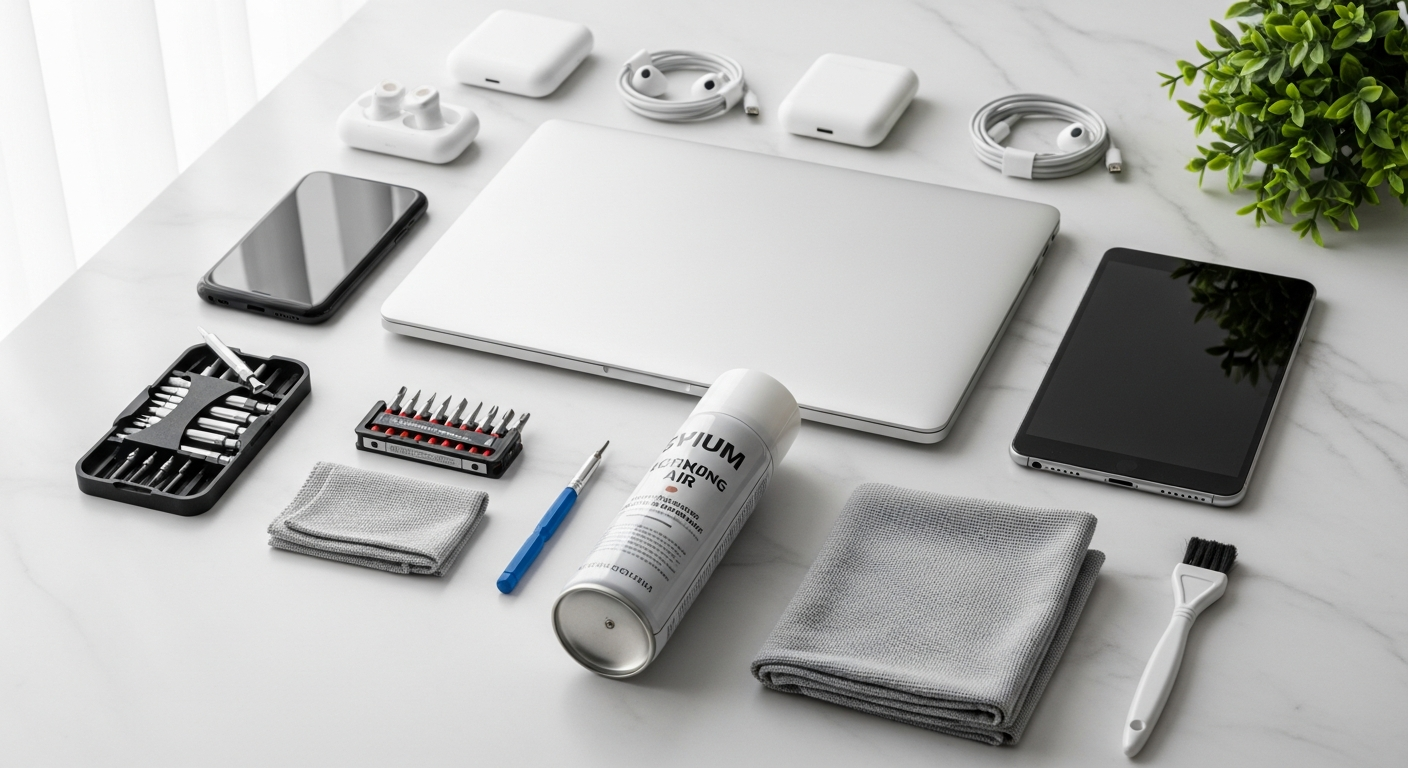
What Tools Do You Need to Clean a Laptop Fan?
You might need:
- Compressed air can – ideal for removing dust.
- Toothbrush or small paintbrush – for brushing away dust.
- Screwdriver – to open the back panel if needed.
- Alcohol-based wipes – for internal cleaning.
How to Clean a Laptop Fan Without Opening It (External Cleaning)
You can clean a laptop fan externally through:
Method 1: Using Compressed Air
- Ensure your laptop is turned off and unplugged.
- Hold it at a 75-degree angle while applying short bursts of compressed air.
- Repeat until no dust is expelled.
Method 2: Brushing with a Toothbrush or Paintbrush
Gently brush dust away, then follow with compressed air.
Method 3: Using a Shop-Type Vacuum
Utilize a shop vacuum to alternate suction and air to clear out dust.
How to Clean a Laptop Fan by Opening Your Laptop (Internal Cleaning)
For the best results:
- Turn off the laptop and remove the battery if possible.
- Using a screwdriver, remove the back panel screws and lift the cover gently.
- Locate the fan and unscrew it delicately.
- Clean it with compressed air and a soft brush.
How Often Should You Clean a Laptop Fan?
Adhering to a 3-6 month cleaning schedule ensures prolonged laptop health, especially in dusty environments.
Is Your Laptop Too Far Gone? When to Consider Upgrading or Selling
If persistent overheating and slowdown occurs, consider upgrading. Platforms like TamTam offer opportunities to sell or trade-in electronics.
Quick Summary: How to Clean a Laptop Fan
| Method | Tools Needed | Best For | Opens Laptop? |
|---|---|---|---|
| Compressed Air | Can | Regular maintenance | No |
| Brush Cleaning | Toothbrush | Stubborn dust | No |
| Full Internal Clean | Screwdriver, wipes | Deep clean | Yes |
Frequently Asked Questions
Q: How do I know if my laptop fan needs cleaning?
A: Look for signs like abnormal fan noise, overheating, or slow performance.
Q: Can I clean my laptop fan without opening the laptop?
A: Yes! Using compressed air is the preferred method.
Q: How often should I clean my laptop fan?
A: Every 3 to 6 months is ideal, or more frequently if needed.
Q: Is it safe to use a regular household vacuum on my laptop?
A: No, it can create static electricity. Use a shop vacuum instead.
Q: Do I need to reapply thermal paste after cleaning my laptop fan?
A: Only if you removed components with thermal paste.
Q: What should I do if my laptop is still overheating after cleaning the fan?
A: It may need professional repair services if issues persist.